Portal Support
PORTAL UPDATE: 20/3/2026
TNZ Portal, a system which allows Clubs, Associations, Regions and us as the National body to do a number of really useful tasks. This hub serves to help assist you with navigating around the portal.
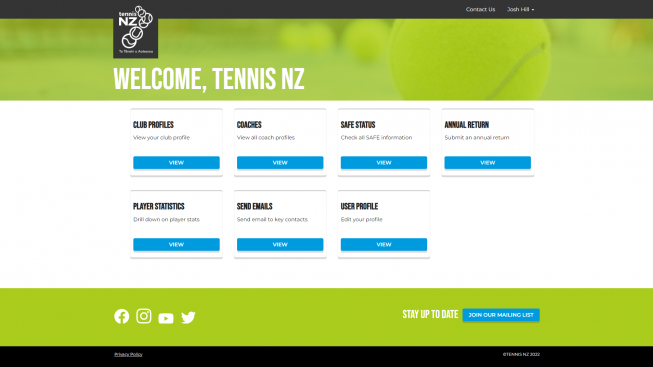
Setup
If you are a club administrator, then you will be able to register for portal access.
- Register your details via the submission form here, please use your personal email address when completing this, you can have multiple portal administrators.
- Tennis NZ will review the application to match the name with the club, this is for privacy and security, this can take 24-48 Hours.
- Check your email for an invitation link to complete your registration, this will include setting a unique username and password
- Bookmark www.portal.tennis.kiwi so you can access this anytime!
Keep a note of your username
This will come handy if you forget your password to login.
What if the Portal administrator is no longer at the club?
Follow the steps above to register for an account, you will have the ability to update / remove a club officer once you are in the portal.
If you are having trouble logging in to Portal
Ensure the correct username and password are used; in some cases, the username may be a unique character you used rather than an email address. e.g. johnsmith12
Password Reset
Ensure the correct username is used when resetting the password; like the steps above this could be a unique character rather than an email address.
Locked out?
If you receive a lock out message, you will need to wait 24 Hours before you can reset or login again, unfortunately Tennis NZ will not be able to override this.
Still need support
Email portal@tennis.kiwi and provide as much information as you can.
Club Profiles
You can update the general information of your venue by clicking the  button
You have the ability to update:
- The venue name (Sponsor name change etc..)
- Main contact email address
- Contact phone number
- Main landing website for the venue
Am I able to add social media links?
At this stage social media handles are not an option, if your club does not have a landing website you can add a social media url in the website section.
Where is this information used?
This updates the National Database immediately as well as update the Find a Club page found here
- Head to Tennis NZ » Where to Play
- Search / Locate your club
- You will find the listed address we have on file.
Am I able to update the address of the club?
Not in the portal, if there is an incorrect address listed, please email the Portal Support team
Review the information in this section and if you need this updated please reach out using one of the following methods
1. To update Hotshots Coaching, Cardio, Xpress, Hotshots Community Play & Love Tennis
Email the Development team here
Please note any requests will need to be reviewed.
2. To update Clubspark, Book a Court and their URL's
Email the Portal Support team here
Please note any requests will need to be reviewed.
SAFE
When people complete the New Zealand Police Vetting Request & Consent Form , the
system relies on an exact match between:
- The name they enter on the Police Vetting form, and
- The name recorded for them in the Tennis NZ Portal
If a portal administrator enters a nickname, shortened name, middle name instead of first
name, or a name with a different spelling, the vetting result may not link back to the profile
that exists in the portal.
For example:
• “Michael” vs “Mike”
• “Nicola” vs “Nicky”
• “Jane MiddleName-Jones” vs “Jane Middlename Jones” (hyphen differences)
• “Ben ” vs “Benjamin ”
When these don’t match exactly, the vetting result is received by Tennis NZ, but the system
can’t automatically attach it to the person’s existing profile. That means they won’t show
under the Club’s SAFE Status even though they have submitted their forms .
1. Ensure the Portal Administrator use their full legal name
They should enter the name exactly as it appears on their ID when completing the Police Vetting form.
2. Check the club’s portal profiles
Make sure the names in the portal match their legal names too. Updating the portal name to the legal name will allow portal to link the vetting record correctly. This is also the same for email addresses too
3. A helpful tip for future requests is to ask coaches or volunteers to forward you the automatic “thank you” email they receive from Tennis NZ after submitting their Police Vetting form. This email confirms their submission, includes their email address, and often displays the legal name they used - which makes it much easier to resolve any mismatches if they occur.
4. Tennis NZ can manually match records
If the forms have been submitted but aren’t showing and you have done all th troubleshooting outlined above, Tennis NZ can manually connect the vetting result to each person’s profile once you know the correct legal name that was used.
Email portal@tennis.kiwi for information
Annual Returns
Portal Emails
If you are a club: You can send emails to your club officers (Note: If you wish to send emails to your club members you will need to do so via your online membership management system)
If you are a LTP / RTO: If you have ability to email club contacts within your area if you wish to reach out to them with important information.
Our Partners